Features
What Regwise does
Every part of it, in the order you'd use it. The screens are the real interface, on a sample service with its 49 policies.
1 · The law
The law, held provision by provision
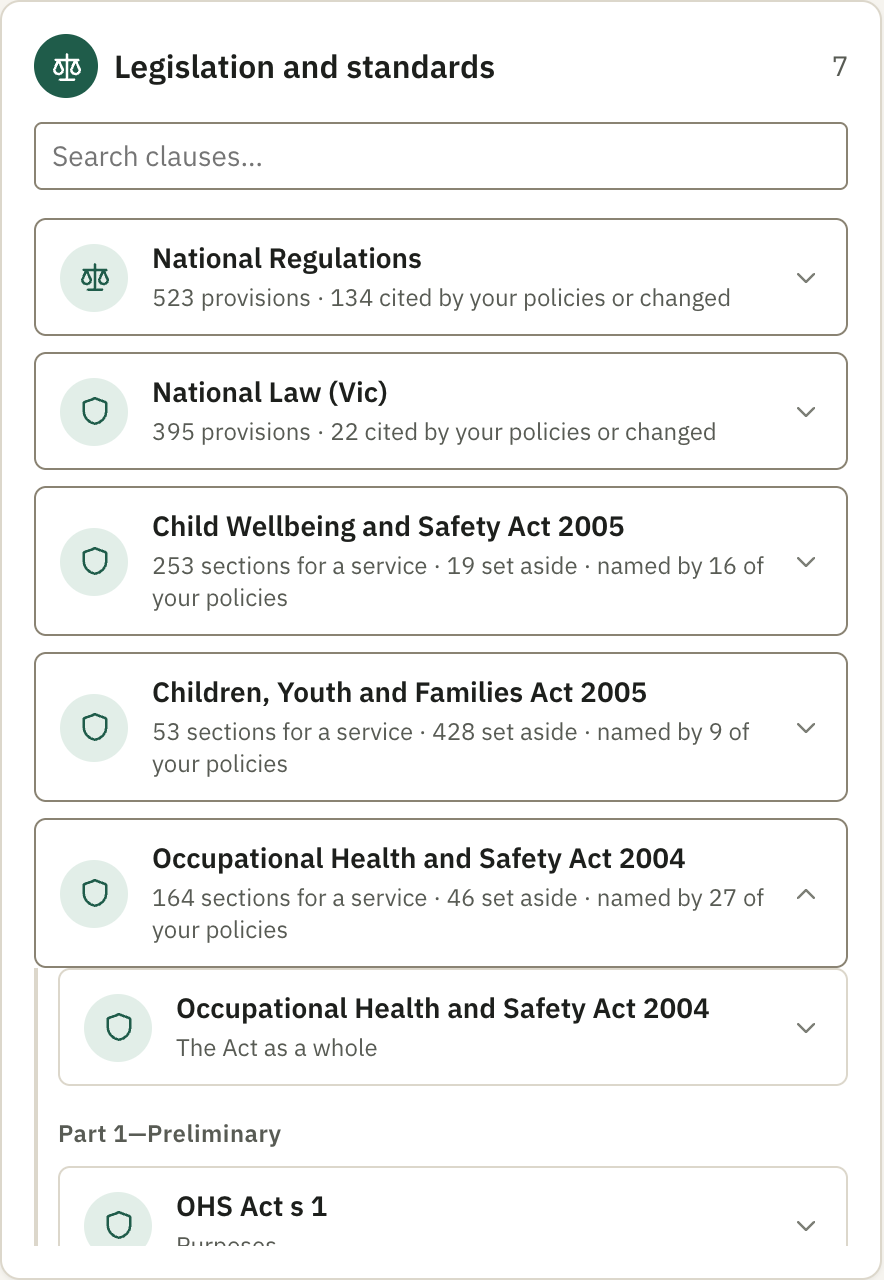
Every law, by name
The National Regulations, the National Law and five Victorian Acts, each with the number of provisions held and how many your policies cite.
- Open a law to read its provisions, or search for words anywhere in it
- A Victorian Act opens under its Parts
- Parts that give a centre-based service nothing to do are set aside with the reason, and you can bring any of them back
A provision, in full
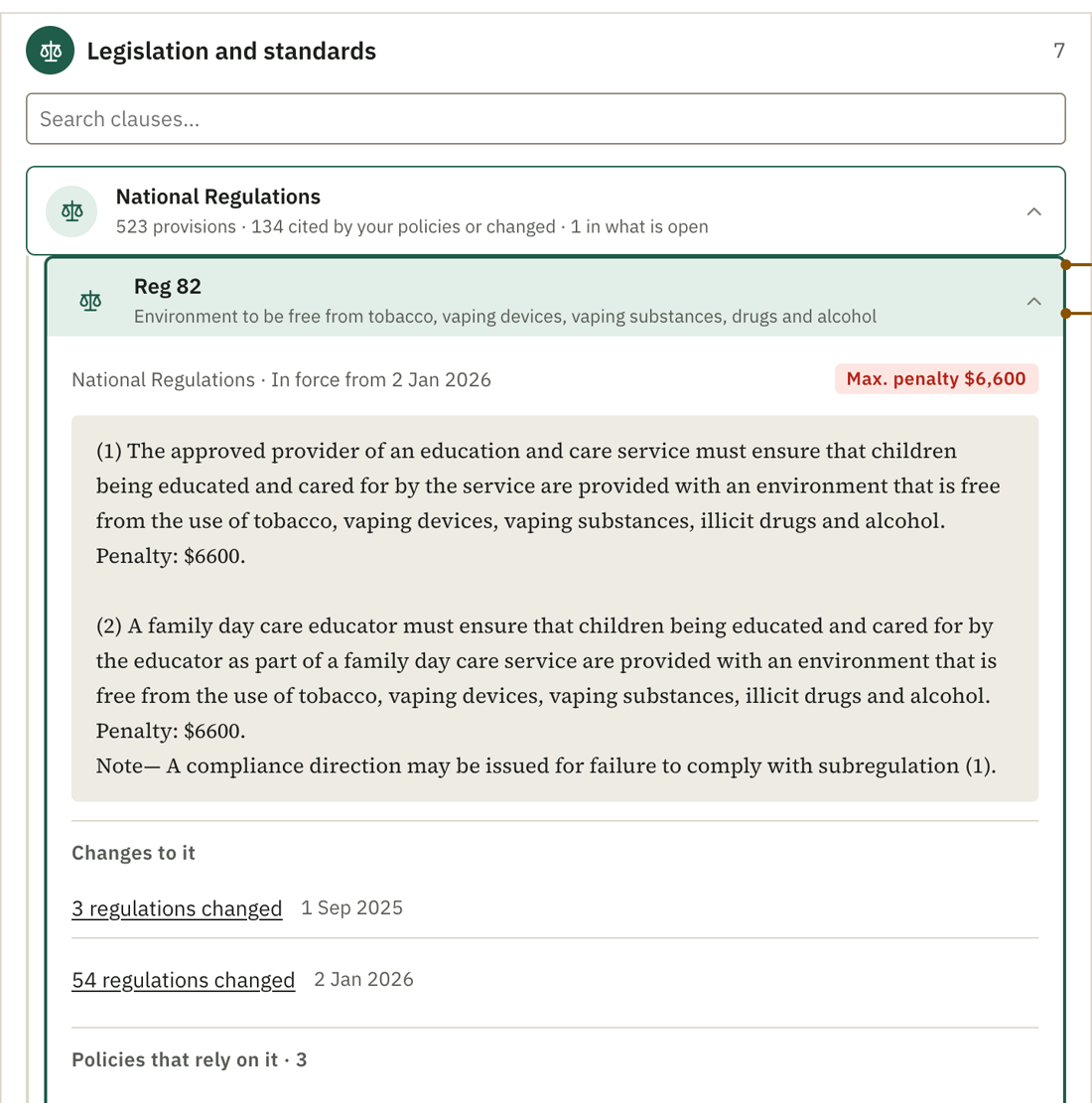
Select a provision and it opens in place.
- The text in force, and the maximum penalty where there is one
- Each change Regwise has recorded to it, by date
- The policies that rely on it, down to the paragraph
Checked each day
Regwise looks for a new version of the National Regulations and the National Law every day. Victorian Acts arrive with each release.
Compared to the paragraph
A new version is compared with the last one down to subregulation and paragraph, so a change to reg 168(2)(ha) isn't reported as a change to the whole of reg 168.
No AI in the checking
Finding what changed is plain comparison of text. It uses none of your assistant's allowance.
2 · A change
What changed, and which paragraphs it reaches
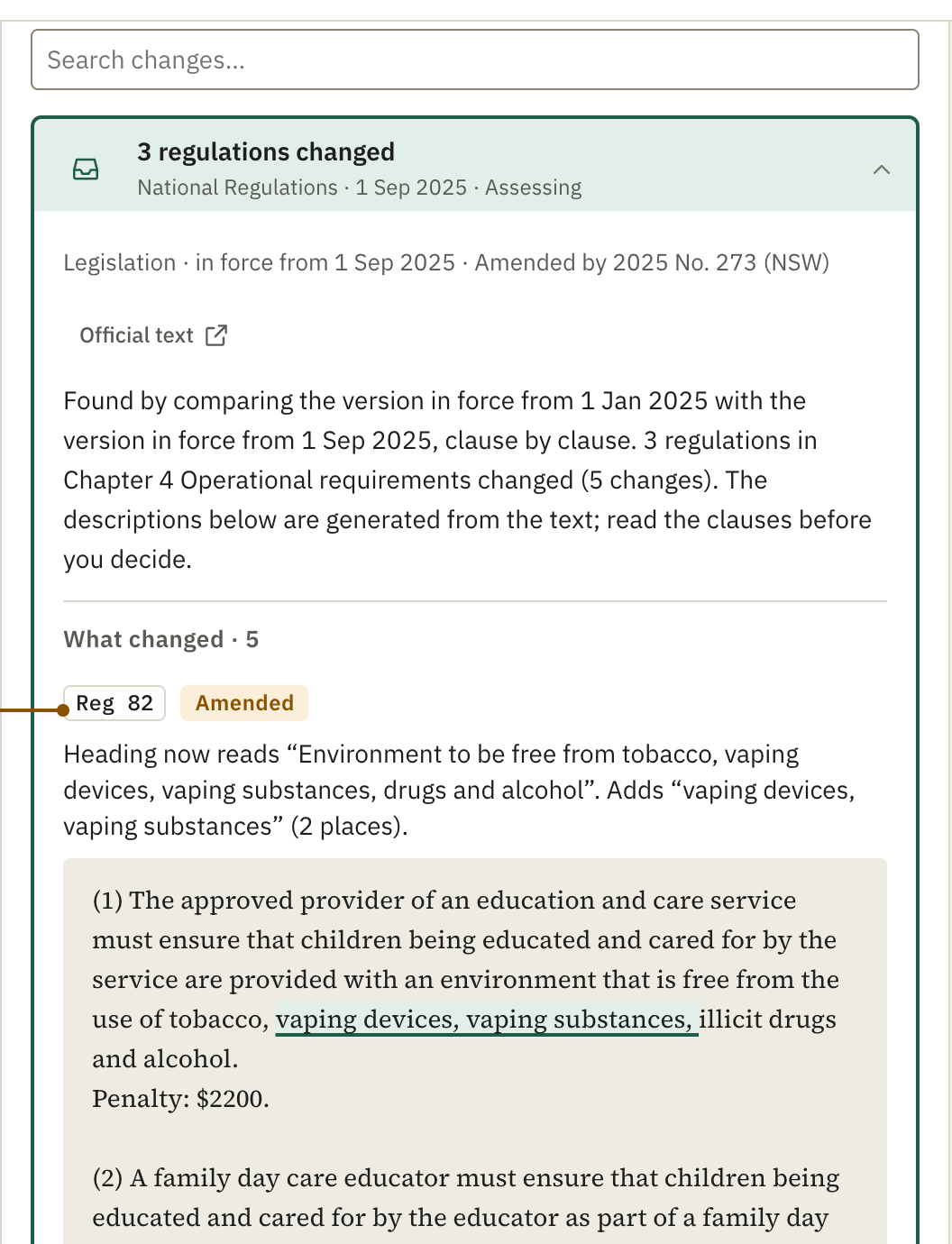
In the words of the law
Each changed section is shown in full. Words that were added are underlined, words that were removed are struck through, and a one-line description says what moved.
Under it, "Where it lands in your policies" lists each paragraph the change reaches:
- Cites. The paragraph cites the provision that changed
- Check. It cites the whole regulation and only part of it changed, or shares its key words
- Placed. Nothing cited it, and your AI assistant suggests where it belongs
Notices from the Department
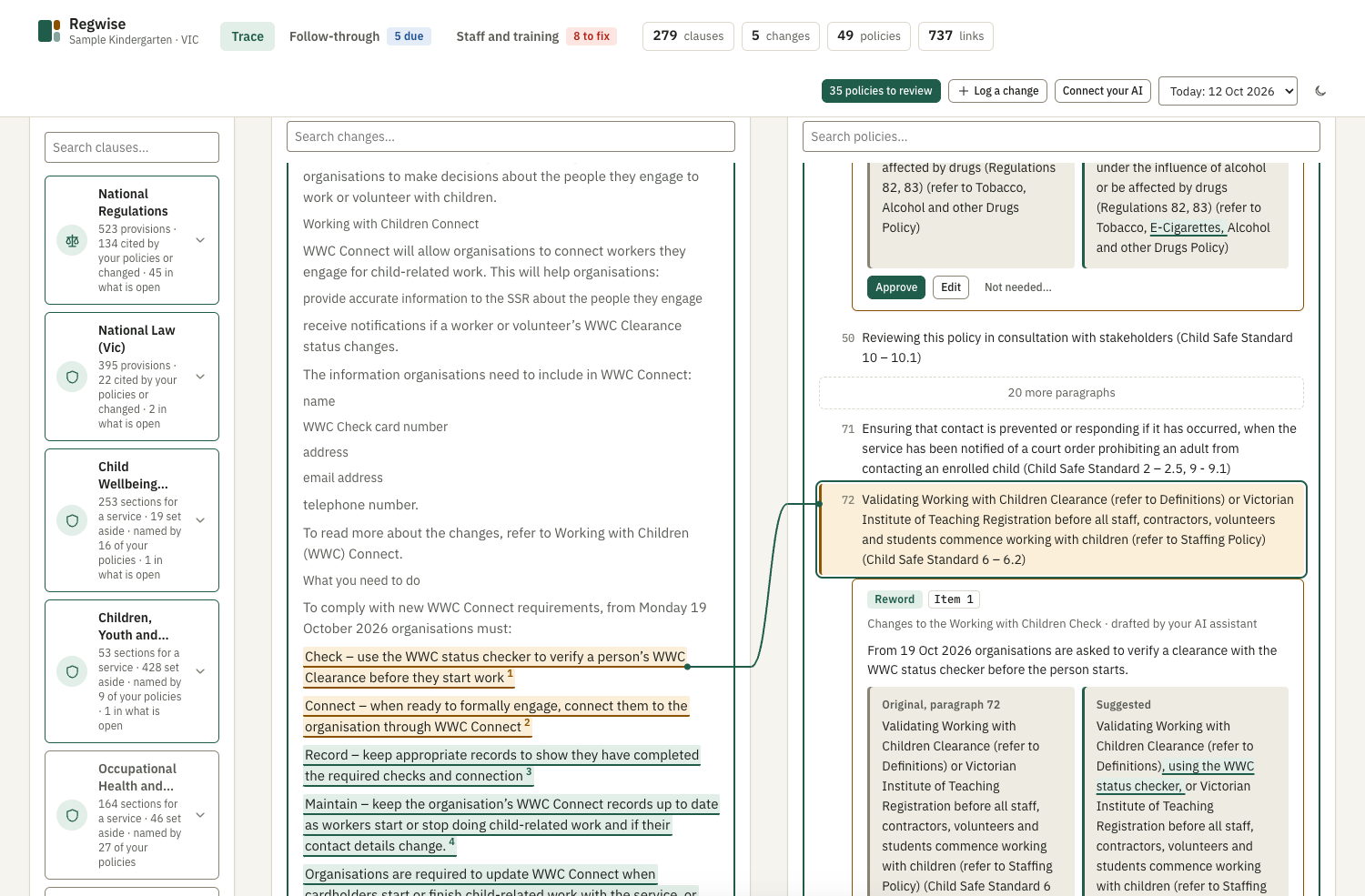
An Early Childhood Update or a regulator's notice isn't a change to legislation, so comparing versions never finds it. Give the link or the email to your AI assistant.
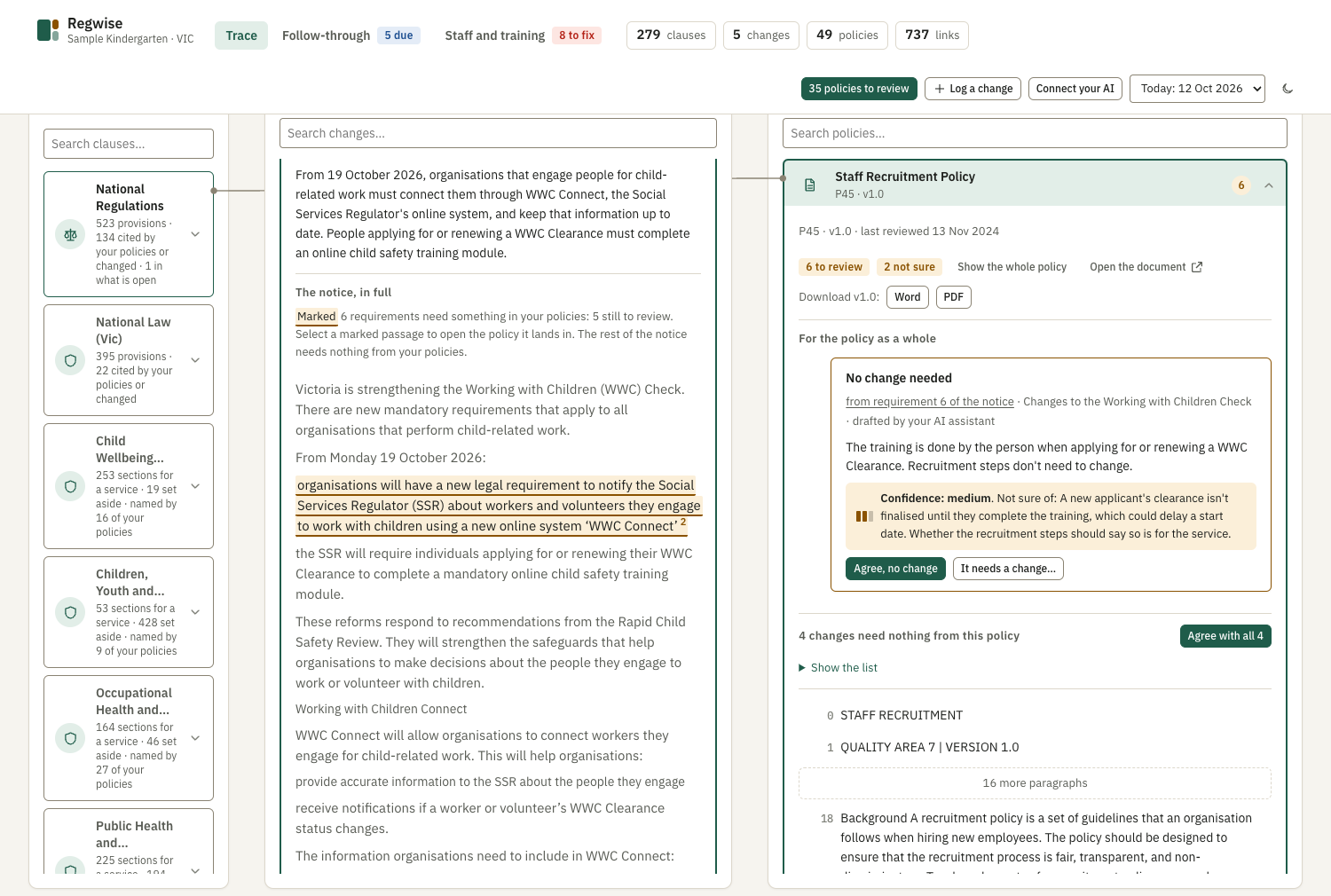
The notice appears as published. The passages that ask something of your policies are marked and numbered, joined by a line to the policy they belong in. Select one and the policy opens at that paragraph.
Changes that don't apply to you
Regulations that bind only family day care are folded at the end of a change with the reason. They reach no policy and take no suggestions.
Decided, and undoable
Your AI assistant can mark a new regulation as not applying to a centre-based service, with its reason. The page shows who decided, and "It applies to us" brings it back.
3 · Review
Your AI assistant drafts. You approve.
Suggested wording, beside the original
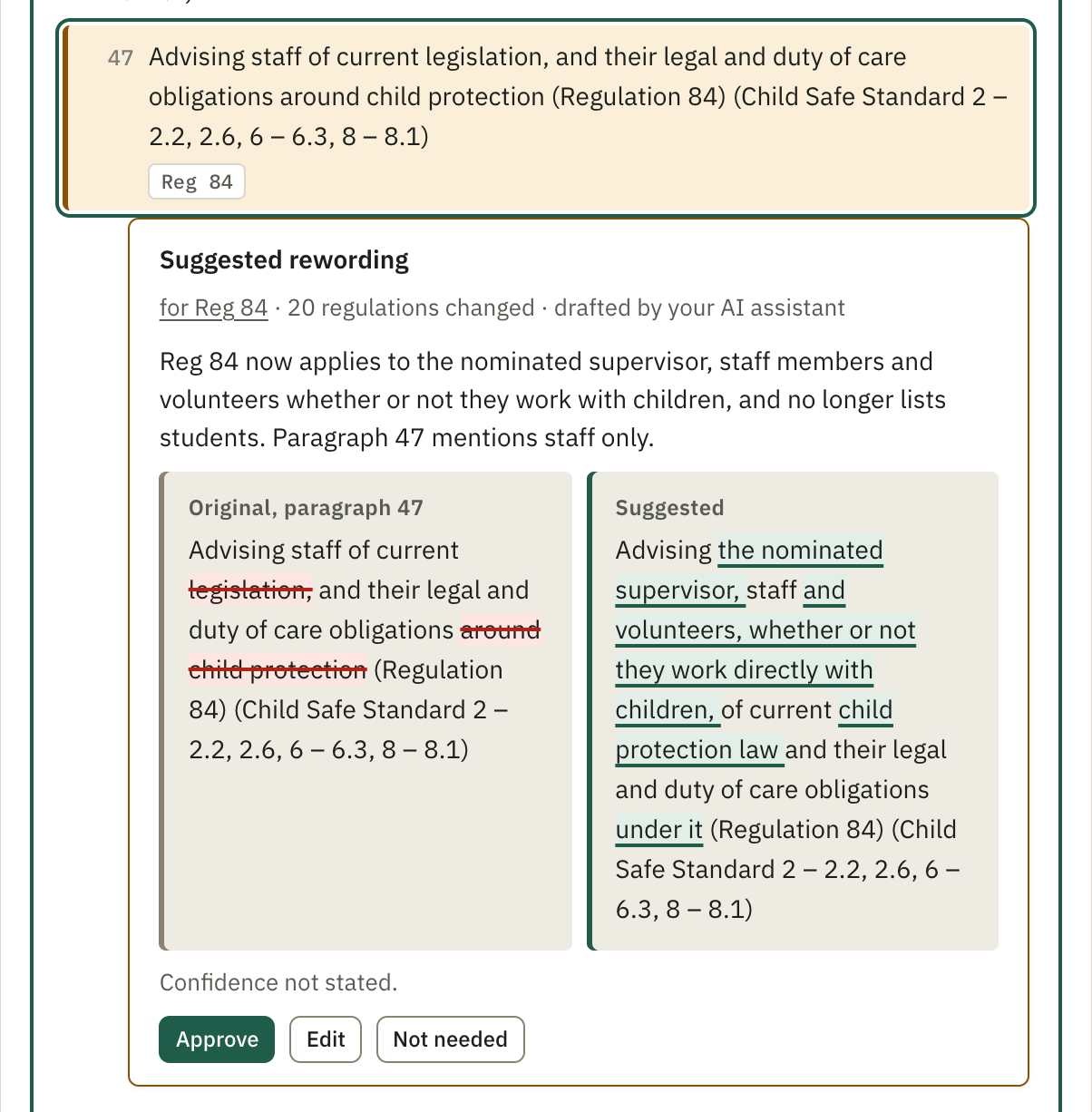
Under the paragraph it changes, each suggestion shows the original and the suggested text side by side with the differences marked, and says why.
- A suggestion is a rewording, an addition, something to check, or "no change needed" with the reason
- Approve, edit the wording, or mark it not needed
- Approved wording goes straight into the policy's draft
- A decision can be undone until the policy is published
How sure the assistant is
Every suggestion from your assistant states its confidence as high, medium or low, and names the one thing it isn't sure of. That is the thing to check.
- A suggestion the assistant isn't sure of is never swept into "Agree with all"
- Wording that brings in a regulation Regwise doesn't hold is flagged "Check before you approve"
Your feedback is read first
What you turned down and why, and the wording you changed, go back to your assistant. It can't save new suggestions until it has read your latest decisions.
Publishing checks reg 172
Where families must be told, Regwise works out the last day to send the notice and holds the policy until 14 days after it went. The exception for a risk to safety (reg 172(3)) is there too.
Take the version with you
Each version downloads as Word or PDF, with a last page listing what changed, the clause behind each change and the reason. Earlier versions are kept.
4 · Follow-through
After the policy: staff, families and the QIP
One card per change
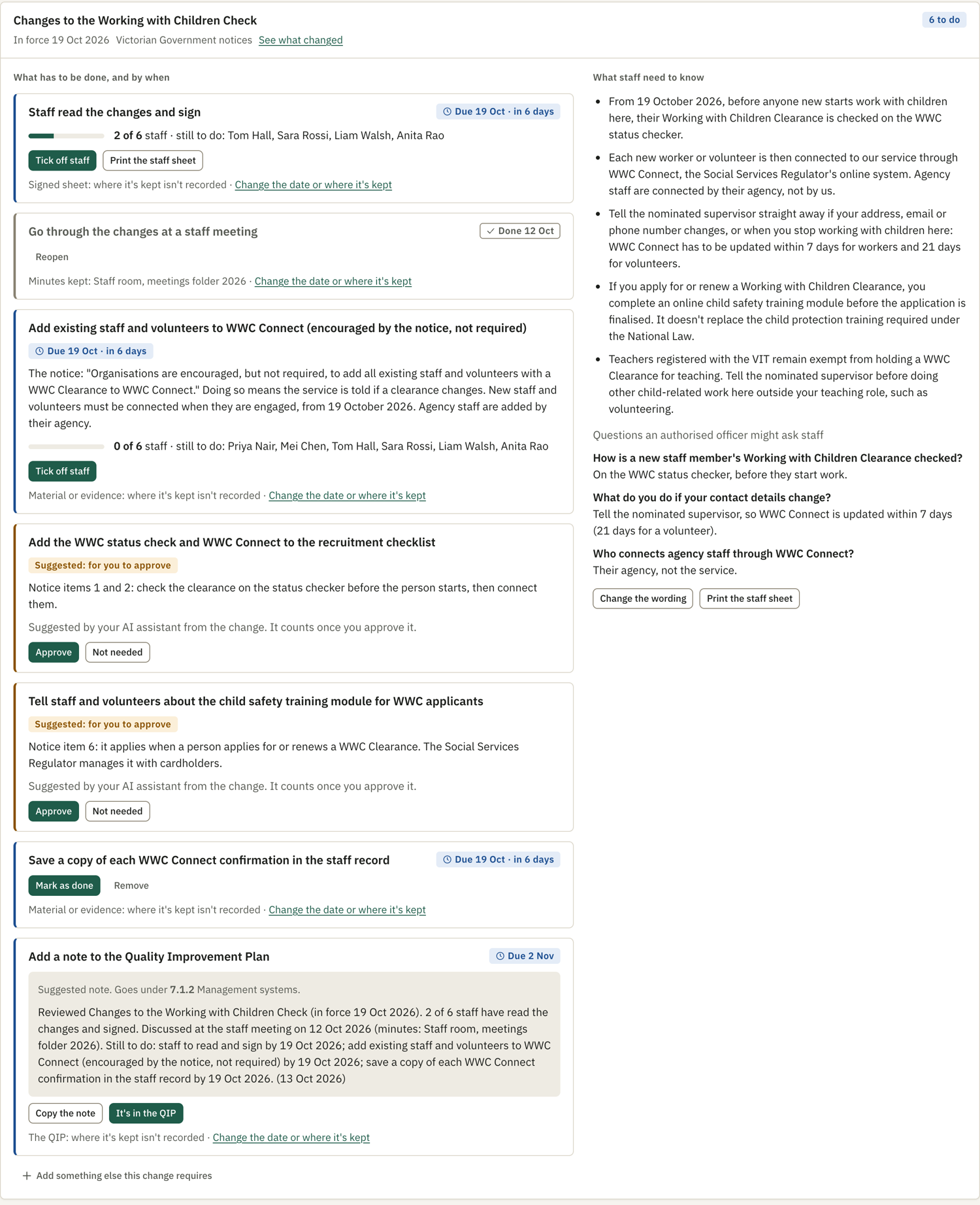
What has to be done and by when, on the left. What staff need to know, and the questions an authorised officer might ask them, on the right.
- Staff read and sign, ticked off person by person
- Staff meeting, with the date and where the minutes are kept
- Anything else the change requires, suggested by your AI assistant with the sentence it comes from. It counts once you approve it
- Where the evidence is kept, recorded against each step
The staff sheet
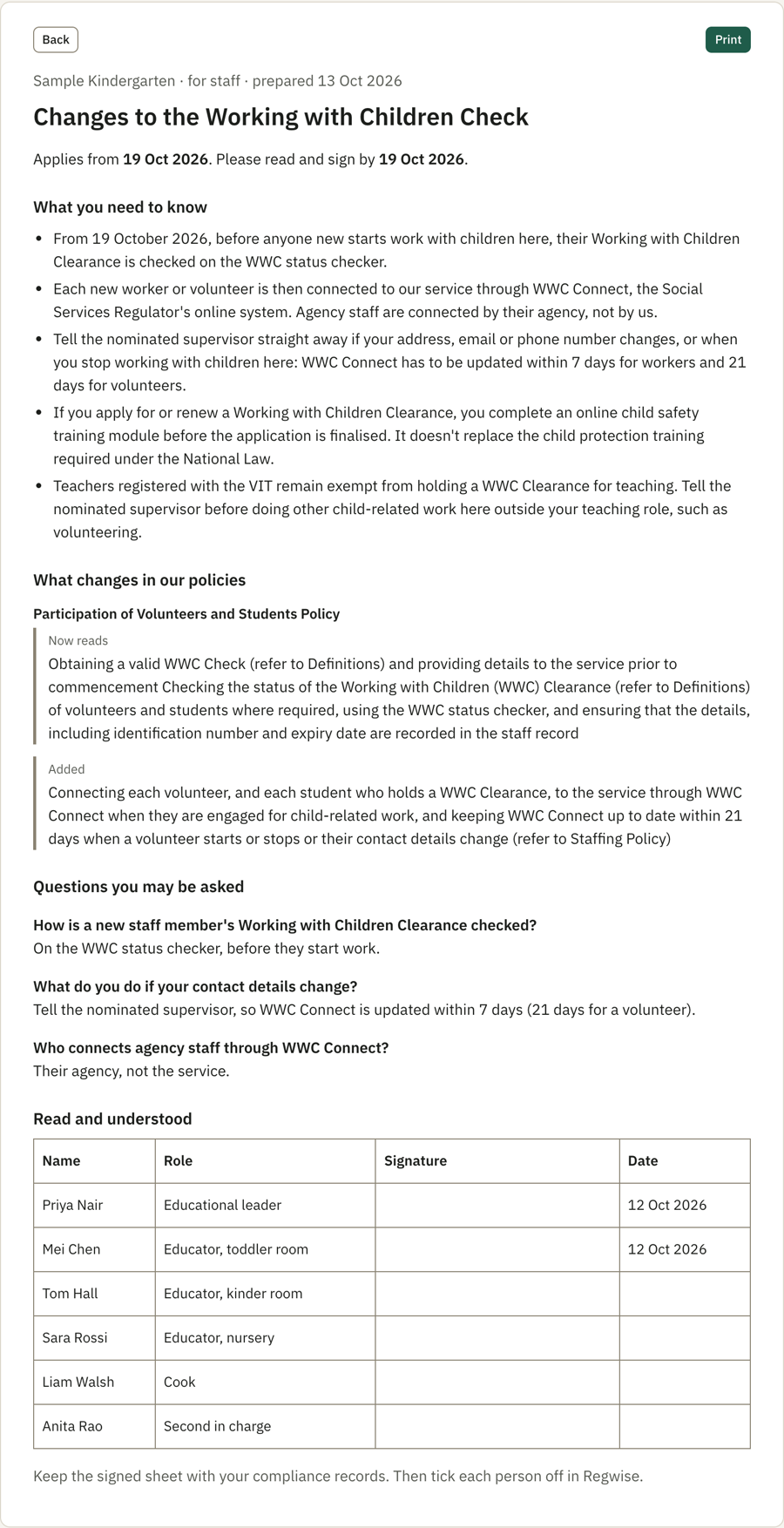
One page to print for the staff room: what changed, the approved wording in each policy, the questions staff may be asked, and a table to sign.
Agency staff are listed in Regwise but not counted, and people who have left keep their records.
The note for your QIP
A dated note built from what was done: the policies and versions, the provisions, how many staff have signed, the meeting date, and what is still to do. It names the NQS elements it belongs under, ready to copy in.
5 · Staff and training
Who holds what, and when it runs out
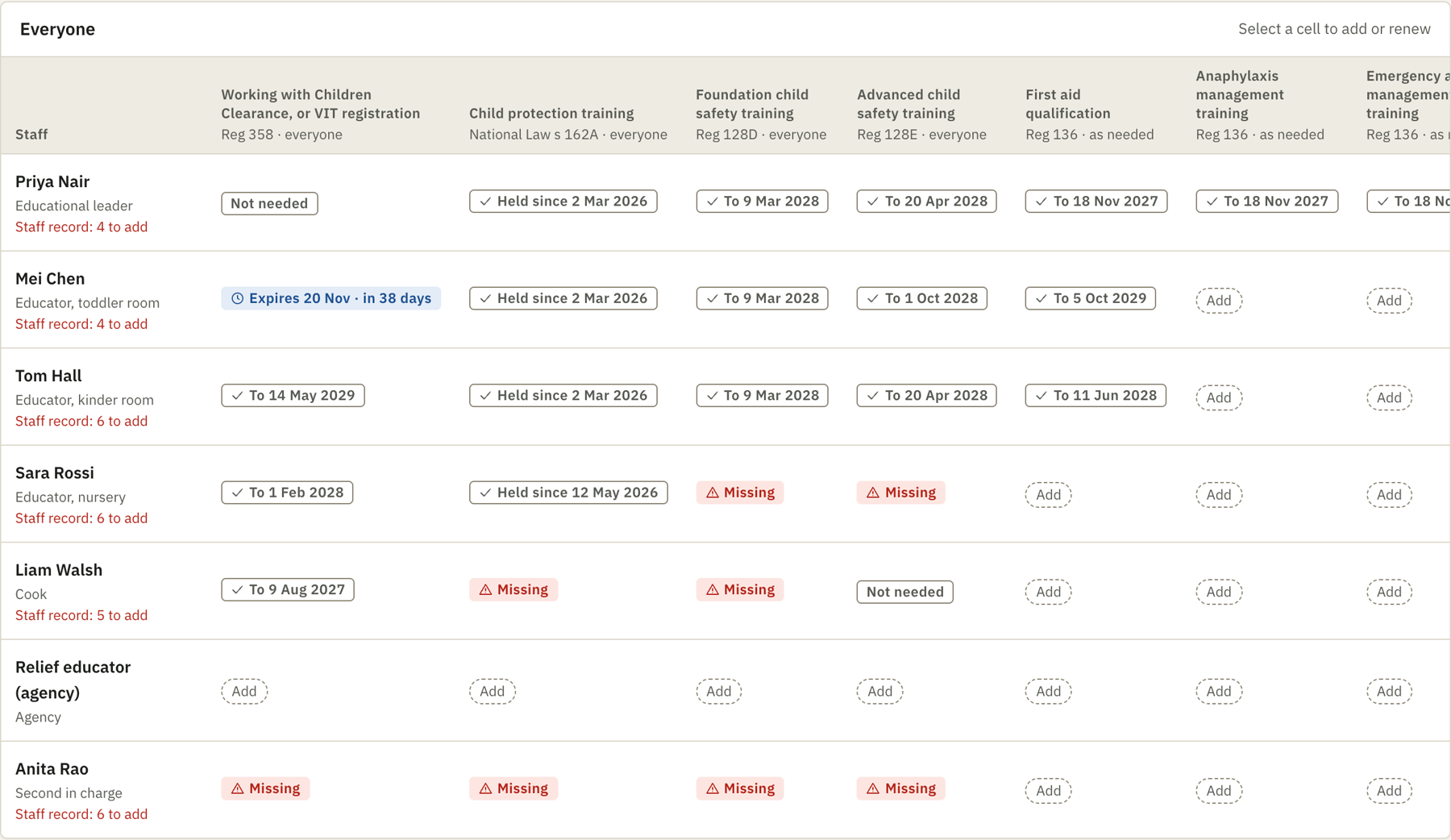
Everyone, by certificate
One row per person, one column per thing you track. Select a cell to add a certificate or renew one.
- Expired, missing and expiring within 60 days are listed first
- A renewal is a new entry, so the history stays as evidence
- "Not needed for this person" takes a reason, such as a registered teacher and the Working with Children Clearance
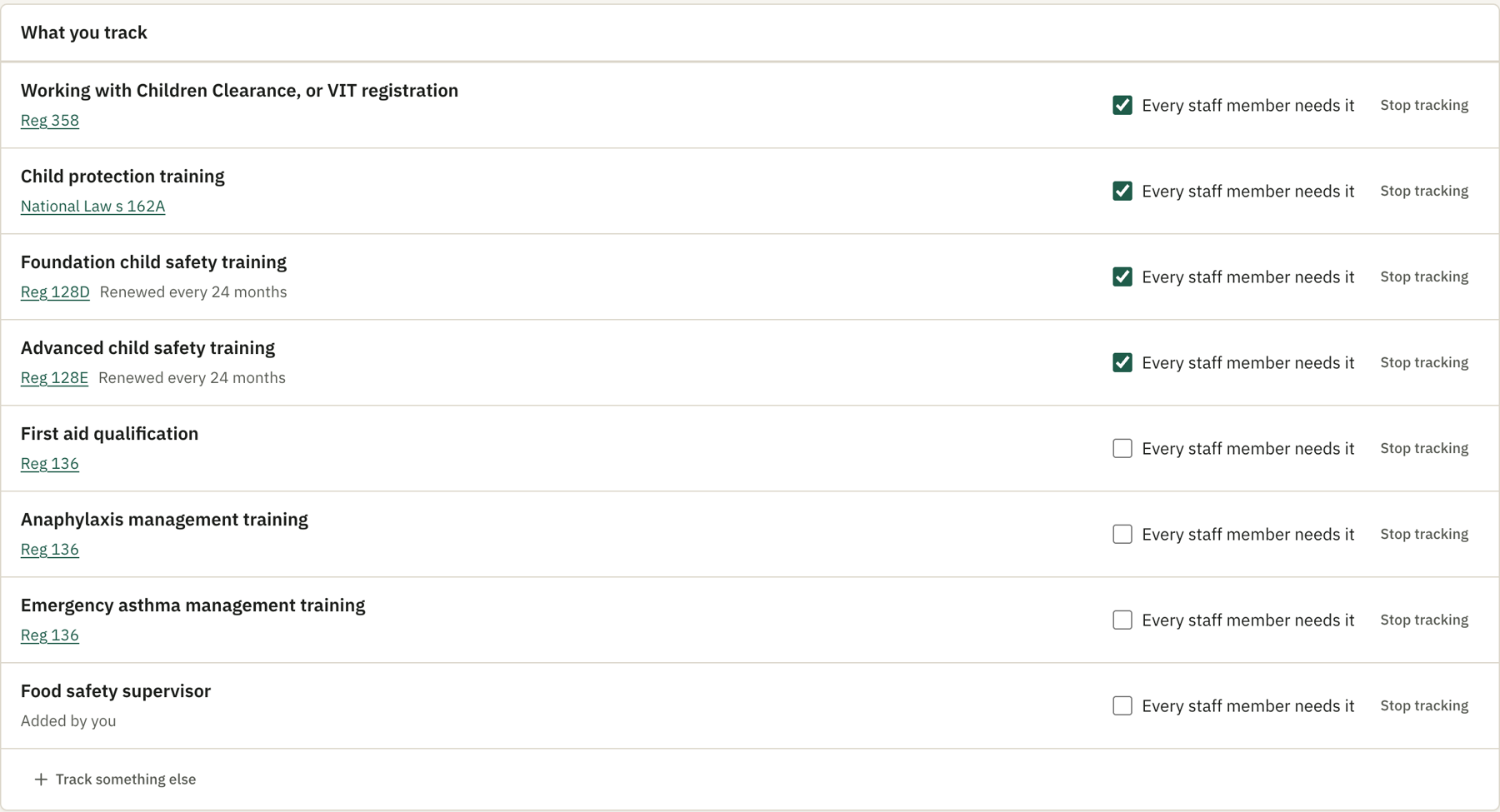
Track what your service needs
The list starts with what the law asks for, each entry tied to its provision. Add your own, or stop tracking one.
Dates are entered as they are on the certificate. Regwise works out an expiry only where the regulation itself states the period, as it does for foundation and advanced child safety training.
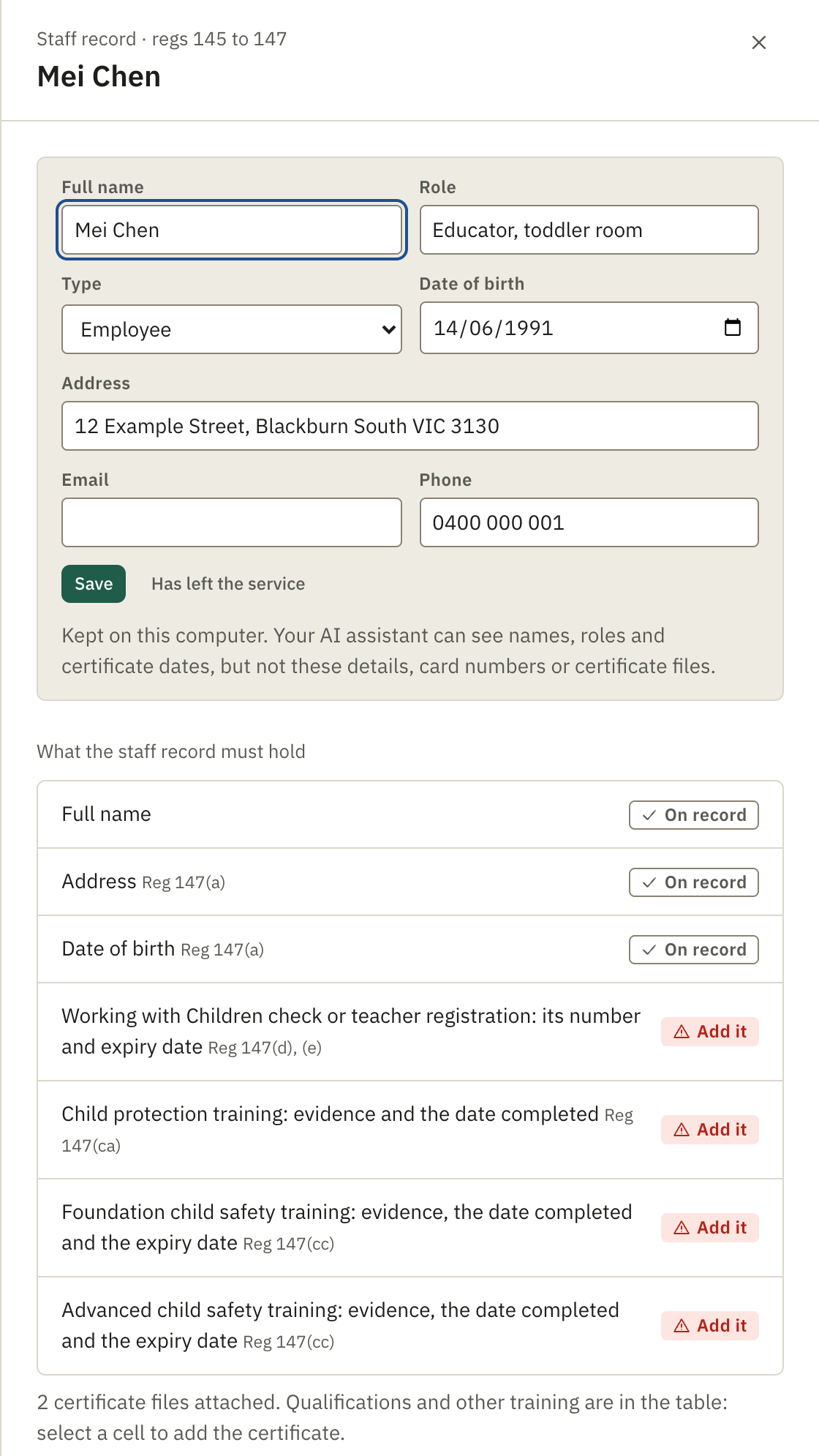
The staff record
Each person's record lists what regs 145 to 147 ask a service to keep, and what is still to add.
- The certificate itself can be attached: a PDF, a photo or a Word file
- Files sit in a folder on your computer, named so they read without Regwise
- Your AI assistant sees names, roles and certificate dates. It never sees addresses, dates of birth, contact details, card numbers or the files
6 · Your AI assistant
What the assistant does, and what stays with you
It can
- Read the law Regwise holds, your policies and the changes
- Link a paragraph to the provision it deals with
- Draft suggested wording, with its confidence
- Log a notice you hand it, quoting the notice word for word
- Draft what staff need to know and the extra steps a change requires
- Answer questions such as "whose first aid runs out this term"
It can't
- Approve, turn down, undo or publish anything
- See staff personal details, card numbers or certificate files
- Record a certificate: a person does that, from the certificate
- Cite a provision Regwise doesn't hold without it being flagged
Setting up
Hand your policies folder to your assistant. Regwise reads Word and PDF documents and links every paragraph that cites a regulation, without using the assistant.
regwise setup
A new or revised policy
Hand the document to your assistant. Regwise files it, keeps the one it replaces, and takes it in as a new version. Nothing is deleted.
regwise add-policies
The cost, stated first
Having the assistant read every policy to find links that aren't cited is optional. Regwise works out the likely cost from your own documents before anything is read.
regwise estimate
Every decision is on record. Who approved what, when, and the reason given, kept in a log that can be added to but not changed.

See it on your own policies
Send us your current policies, or a few of them. We'll show you which paragraphs the 2025–26 child safety changes and the October 2026 Working with Children changes reach. There's no cost and nothing to install.